
If a job gets stuck due to an error on the printing device, the current user is still able to log out. The stuck job will prevent another user from logging in and will automatically print once the cause of the error is corrected. However, this can cause a security issue if the original user is no longer present to collect their documents.
Discard Jobs on User Logout
In Settings > Configuration profile > Terminal > Lexmark, the option Discard pending jobs on logout can be found, see more in Installation. This option allows for cancelling all jobs in progress during logout. For security reasons this option is enabled by default.
When this feature is enabled, the behavior for discarding jobs after logout is:
-
Device initiated logout (automatic logout when Copier operation panel idle time is reached, or the user presses a logout button on the device or screen):
-
If there are still active jobs on the device, a special screen is displayed to inform the user of the pending logout which gives them the option to cancel all jobs and log out immediately.


-
If the user doesn’t interact, this screen is displayed until all jobs are printed, then the user is logged out and the MyQ login screen is displayed.
-
-
Manual logout with the MyQ logout button:
-
A popup message is activated reading If you log out now, all pending jobs will be discarded. Do you really want to logout? Yes/No is displayed.
-
-
Manual logout by swiping ID card:
-
A popup message is activated reading If you log out now, all pending jobs will be discarded. Do you really want to logout? Yes/No is displayed.
-
-
Logout with the MyQ Mobile Client:
-
A popup message is activated reading If you log out now, all pending jobs will be discarded. Do you really want to logout? Yes/No is displayed.
-
-
Paper jam/Out of paper/Device error:
-
When a paper jam, out-of-paper, or other error occurs on the device, the user is not automatically logged out until the issue is resolved. The user can still access the MyQ home screen from the system menu and logout using the terminal logout button or by swiping their ID card, in these cases, the action is completed according to each logout method as described above.
-
Logout is automatically initiated when the Event Action Log out user is configured on the server, and pending jobs are canceled.
-
Limitations
-
All jobs will be canceled including jobs from other users.
-
This functionality is not supported in offline mode.
Manually Cancel Jobs via Job Status Button
It is possible to cancel all running jobs on the Job Status screen. This is accessed via the Job status on the device native screen.
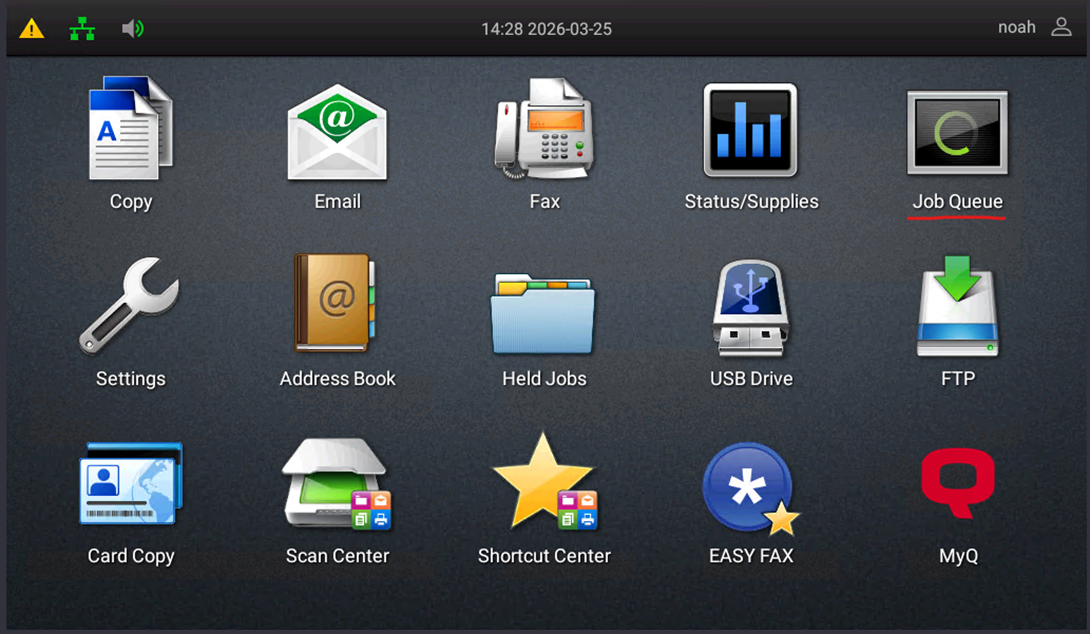
Pressing this button opens the status screen on the embedded terminal where you can select and cancel pending jobs. To access this screen users must Unlock panel or use Admin Login.
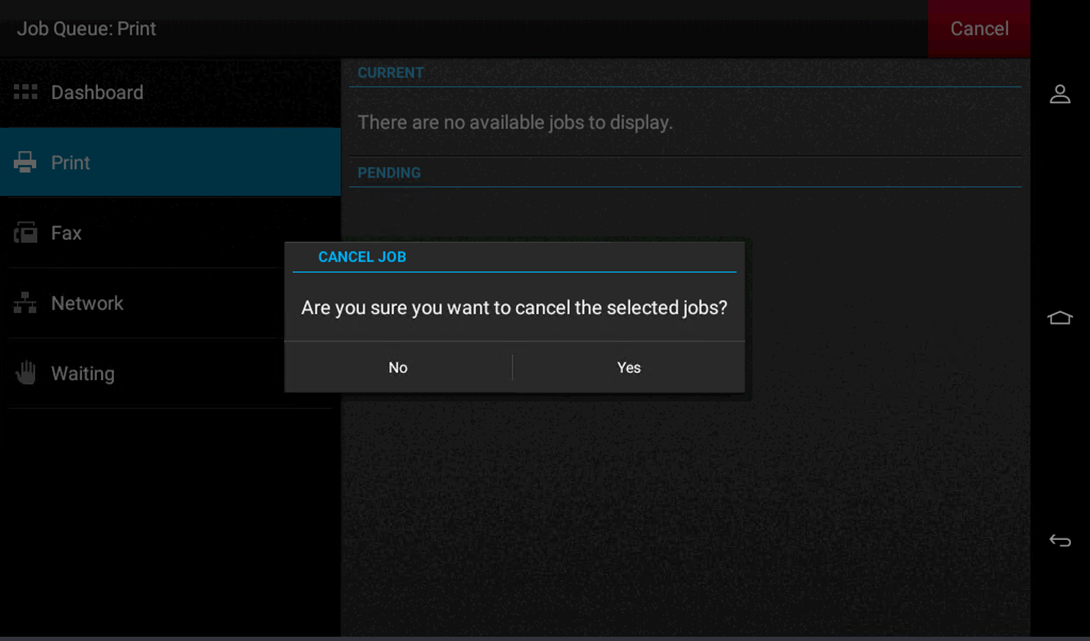
Once you select a job and press Cancel, a dialogue box will be opened asking you to confirm the cancellation of the job. Select Yes and the job is cancelled.