
For MyQ to operate properly, a 100% reliable network connection is necessary. Connection problems can lead to serious issues; for example, users may not be able to start their user sessions on the printing devices and perform any copy, print or scan actions. The Offline Login feature prevents such situations.
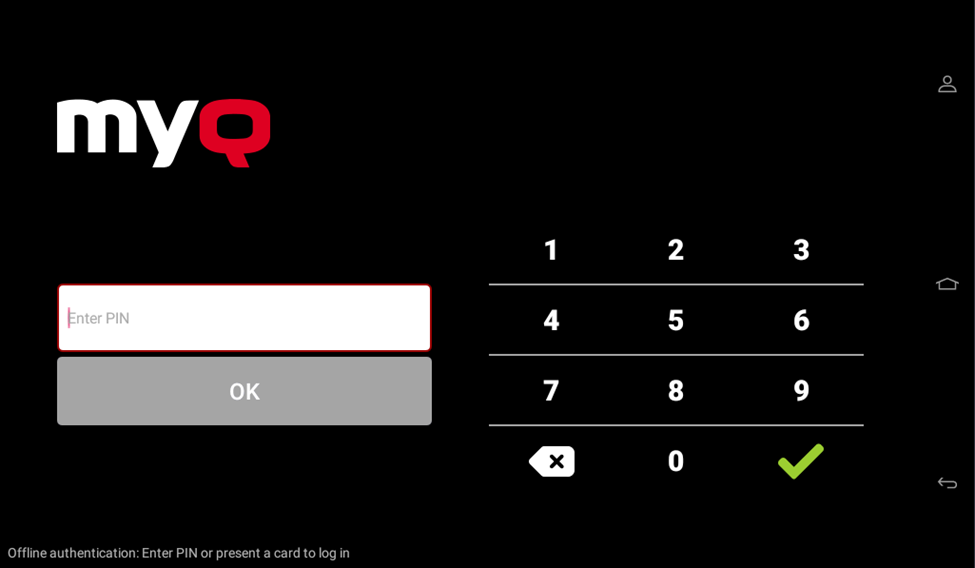
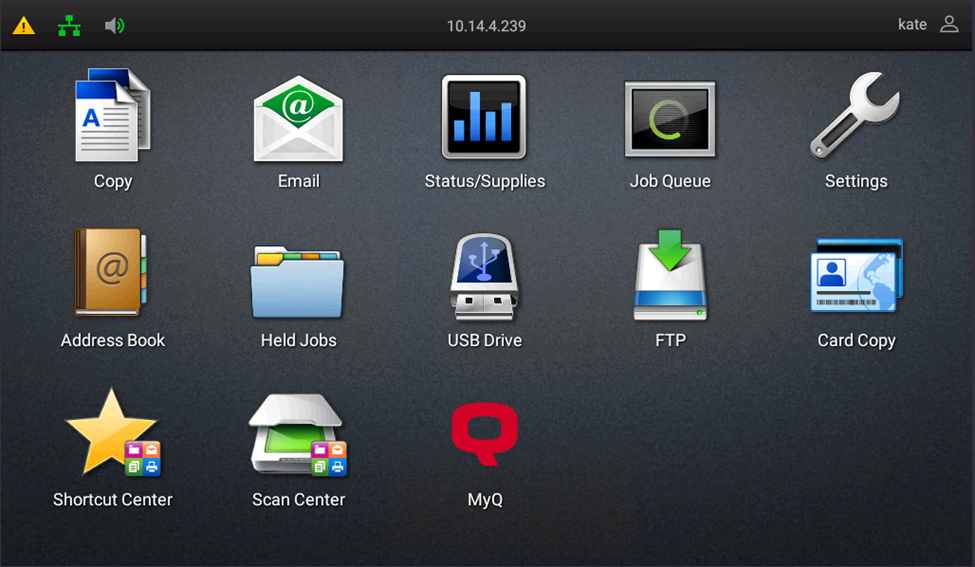
User information, including credentials, are cached on the device and if the server is unavailable, the cached data is used for user authentication. Users can then log in and perform all native device actions. The Lexmark native screen is displayed when an offline user session is starts.
Requirements
-
UDP broadcasts must be enabled on the network.
-
For an optimal run of the Offline Login feature, SSL needs to be enabled on the server. SSL is set by default during the installation, however if you have changed it for any reason, you can set it again in MyQ Easy Config, in the Settings tab.
Limitations
-
Only native panel operations are available (Panel Copy, Panel Scan, USB Print, USB Scan, Panel Fax).
-
Printing via MyQ and Print All after login are not supported.
-
Credit is not supported.
-
Quota is not supported.
-
Projects are not supported.
For details on enabling and configuring this feature, see Offline Login in the MyQ Print Server guide.
Scan to Email in Offline Login mode
You can allow users to Scan to Email even when the MyQ server is offline. In such cases, users can log in to the terminal in the Offline mode and use the Panel Scan action to scan to emails. The terminal remembers the outgoing SMTP server and sends all emails directly to this server. Scanning to email in Offline mode is supported by all models that support embedded terminals.
To enable this feature, configure the device to use your SMTP server IP address or hostname.
-
Go to the device Web UI by accessing http://*deviceIPaddress*/.
-
Log in and go to Settings > Email > Email Setup.
-
Enter the SMTP Server IP address or host name in the Primary SMTP Gateway field.
-
Click Save to apply your changes.
The email@myq.local and folder@myq.local variables cannot be used in the Offline mode for scanning from the panel with these settings, because scanning is not done via the MyQ server.