
Scanning by a single touch. After the user taps this action, the page is immediately scanned to a predefined destination. You can define multiple destinations where the scanned document is sent to, and set scan parameters in MyQ.
For information on how to configure the Easy Scan action and define its destinations and parameters, check Easy Scan settings in the MyQ Print Server guide.
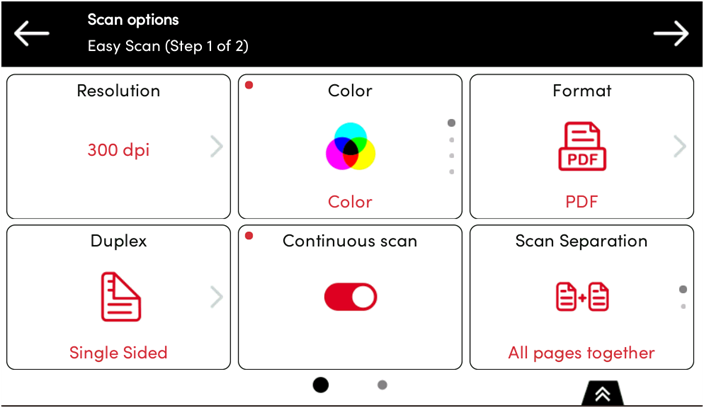
If enabled on the server, users can change their scan settings from the terminal screen.
You can also create new custom parameters to be used in the scan metadata, or as parts of file names, addresses, subjects and email bodies, and as paths to folders, passwords to folders etc. You can find further details in Create custom parameters on the MyQ Print Server guide.
OCR (Optical Character Recognition) can be used with Easy Scan, by creating OCR profiles and enabling users to select them on the embedded terminal. You can find further details in OCR on the MyQ Print Server guide.
Filter Storage Locations
When using Easy Scan to scan to a storage location, a filter option is available to assist in locating files or folders. The filter only returns results for the current folder level that is selected, the contents of parent or child folders will not be queried. This feature is available when using Print Server 10.2 patch 23+.
Easy Scan Parameters
Each parameter has a Default option. If selected, the actual values are taken from the default scan settings of the printing device. If you change the scan parameters, you can reuse them for another scan. The parameters are reset only when you return to the Top Menu.
-
Resolution - The outgoing file's resolution. You can select from the following options:
-
100 dpi
-
200 dpi
-
300 dpi
-
400 dpi
-
600 dpi
-
Default
-
-
Color - The outgoing file's color scale. You can select from the following options:
-
Color
-
Grayscale
-
B&W (two tones)
-
Automatic
-
Default
-
-
Format - The outgoing file's format. You can select from the following options:
-
PDF
-
JPEG
-
TIFF
-
XPS
-
HCPDF
-
Default
-
-
Duplex - Simplex and Duplex scanning options. You can select from the following:
-
Single Sided
-
Duplex - binding on top
-
Duplex - binding on side
-
Booklet - binding on left
-
Booklet - binding on right
-
Default
-
-
Continuous scan - With the continuous scan option Enabled, scan jobs are not sent until Finish is tapped. After clicking Next, the printing device scans another page. You can select from the following:
-
Disabled
-
Enabled
-
Default
-
-
Scan separation - If a document with multiple pages is scanned, scanned pages can be stored either separately (each page in a separate file) or all together in one file. You can select from the following options:
-
All pages together
-
Separate each page
-
Default
-
-
Original Image - Determines the way in which the printing device is going to process the scanned page. You can select from the following options:
-
Text + Photo
-
Photo
-
Text
-
Default
-
-
Original Orientation - Determines the scanned page's orientation in the outgoing file. The paper's position is relative to the person standing at the printing device. You can select from the following options:
-
Top Edge on Top: The page is displayed in a horizontal position (top edge of the page opposite to the person)
-
Top Edge on Left: The page is displayed in a vertical position (top edge of the page on the left hand side of the person)
-
Default
-
-
Density - The picture's density in the outgoing file. The higher it is, the darker the resulting picture is. You can select from the following options:
-
Automatic
-
Lowest
-
Lower
-
Low
-
Normal
-
High
-
Higher
-
Highest
-
Default
-
-
Size - The scanned output's size. This determines the size of the scanning area, therefore it should correspond to the actual size of the scanned paper. You can select from the following options:
-
Automatic
-
A3
-
A4
-
A5
-
A6
-
Folio
-
Ledger
-
Letter
-
Legal
-
Oficio II
-
Statement
-
Default
-
-
Skip blank pages - With this parameter, you can select to skip blank pages in the scanned document. You can select from the following options:
-
Default
-
Yes
-
No
-