
Document Queues group documents moving through the Scan Review workflow and define:
-
The transfer note process metadata attached to the documents.
-
The reviewers responsible for checking the documents.
-
The destination to which approved documents are delivered.
Create a Document Queue
-
Log in to Scan Review as a user with admin rights.
-
Click Add in the top right corner of the main page.

-
Specify a Queue Name.
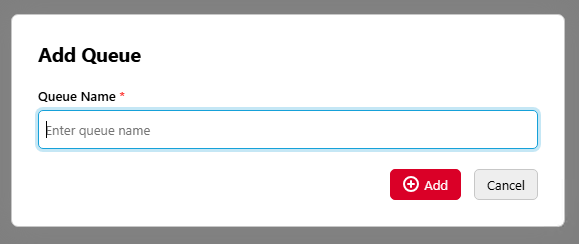
Your queue is created; further settings can now be edited.
Assign Reviewers to a Document Queue
-
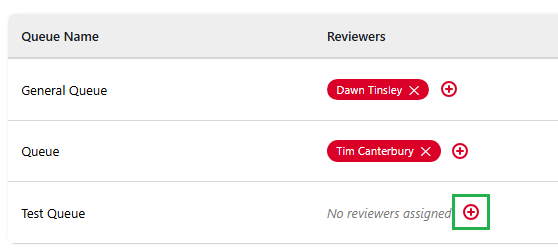
In the relevant queue row, click the + button in the Reviewers column.
-
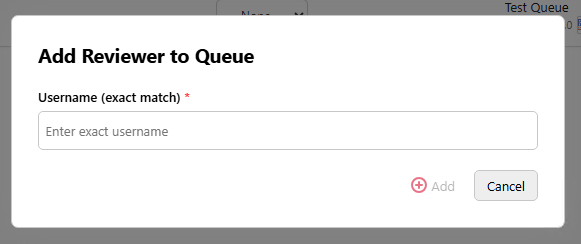
Type the MyQ username of the user you wish to add, the username must match precisely but is not case sensitive. Click Add.
-
The reviewer is added, when this user logs in to Scan Review, they will see any unreviewed documents that were submitted to this queue.
Assign a Destination to a Document Queue
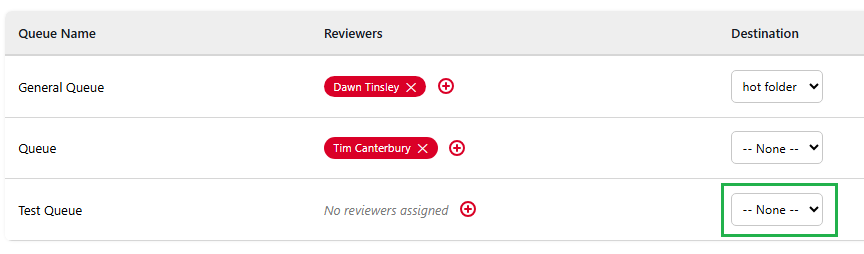
In the relevant queue row, select a Destination from the drop down. Destinations must be configured before they can be assigned to a Document Queue. See Configure Scan Review for more information.
Edit Queue Details
-
In the relevant queue row, click the Edit (pencil) icon in the Action column.

-
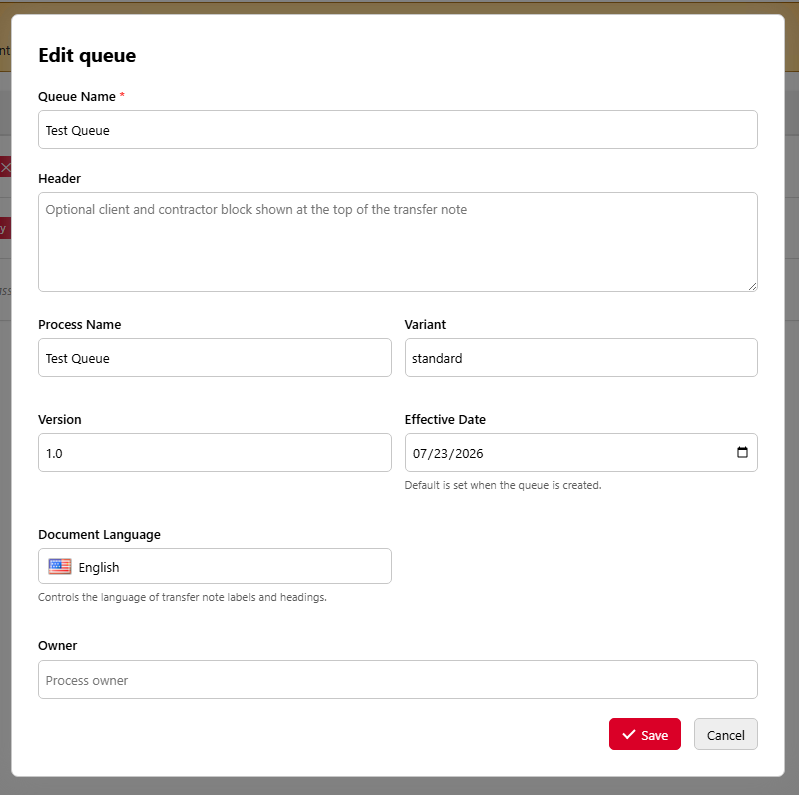
In the Edit queue dialogue that opens you can:
-
Change the Queue Name
-
In Header add an optional client and contractor block shown at the top of the transfer note
-
Change the Process Name
-
In Variant specify a protection level. Please note that while a level can be added for reference here, the actual level of each document submitted depends on how the Scan Review Terminal Action for this queue is set up.
-
Change the Version
-
Change the Effective Date. The default is the date when the queue was created.
-
Select a Document Language. This dictates the language of transfer note labels and headings.
-
Assign a Process Owner.
-
When a document is approved, Scan Review generates the Transfer Note by combining the process metadata configured for the Document Queue with information automatically generated during scanning, review, and approval. The Transfer Note is embedded in the final PDF/A document.
Delete a Document Queue
In the relevant queue row click the Delete (trash can) icon in the Action column. Confirm that you want to delete the queue and remove all reviewers and documents associated with it.