
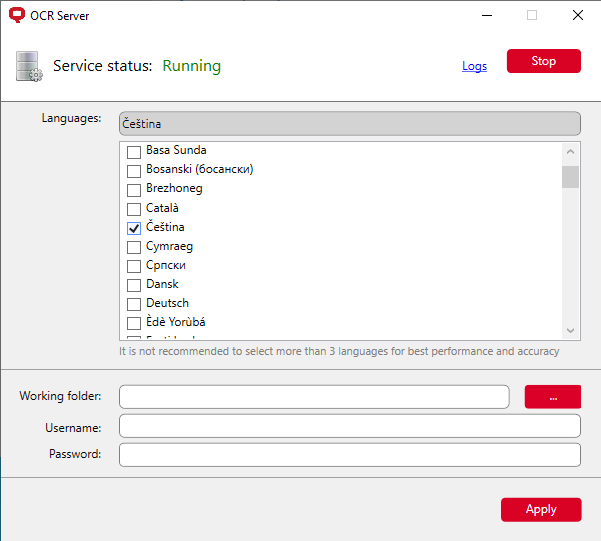
To configure MyQ OCR Server, use the OCR Server configuration window that opens automatically after the MyQ OCR Server installation completes. To open it directly, go to Windows apps and select MyQ OCR Server Settings.
In the configuration window, you can also stop and start the Windows service of the OCR server, and open logs.
-
Languages - While you can select all the Supported Languages, we recommend to select only those that are likely to be used within the OCR process. Selecting fewer languages increases the speed and accuracy of the OCR process.
-
Working folder - This is the folder where the OCR server and the MyQ server exchange the OCR scanned files. This value must be the same as OCR working folder that you set in MyQ > Settings > Scanning & OCR. In case you use a shared folder, enter the Username and Password for access to the folder.
Both the MyQ server and the OCR server must have read and write access to the OCR working folder.
Click Apply for your changes to take effect.
To open the log files, click Logs at the top-right corner of the OCR Server configuration window.
To stop or restart the OCR Server Windows service, click Stop (or Start) at the top-right corner of the OCR Server configuration window. You can also manage the service in the Windows Task Manager, where it is called OCRService.