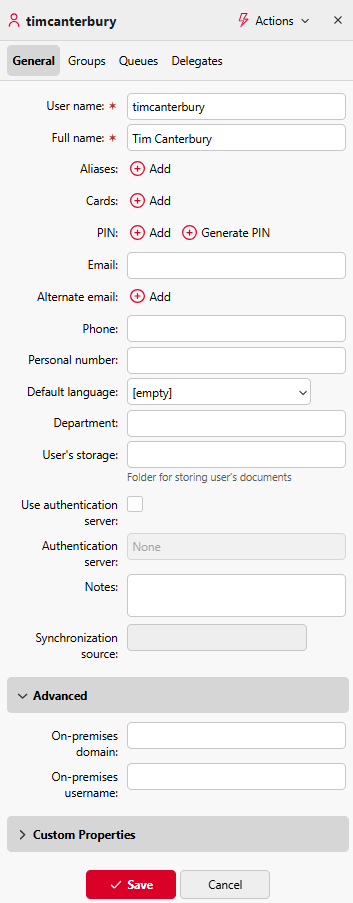
Each individual user has their own properties panel. To open the panel, double-click the user on the list on the Users main tab (or right-click the user, and then click Edit). The properties panel opens on the right side of the screen.
The panel is divided into General, Groups, Queues, and Delegates tabs. If Credit accounting is enabled for the user, the Credit tab is also available.
User Information and Settings
-
User name
Unique user ID used to identify and authenticate the user; typically mapped from LDAP or Entra ID. MyQ compares this attribute with the one identified by the enabled user detection method. -
Full name
User’s display name, usually first name and surname. In Active directory and Open LDAP, this property corresponds to the cn user attribute on the LDAP server. -
Aliases
Alternative user names that allow the same user to log in or send jobs from different accounts. -
Cards
Identification card number used for login at terminals; can be set manually, imported during synchronization, or for user self-registration at the terminal. -
PIN
The MyQ personal identification number that allows access to MyQ Web Interface and MyQ terminals. An unlimited number of PINs can be added. The PINs can be either Persistent or Temporary. For security reasons we recommend automatically generating PINs. -
Email
User’s primary email address for communication and scan delivery. -
Alternate email
Additional email addresses that can be used as scan destinations. -
Phone
User’s phone number for contact purposes. -
Personal number
Optional secondary ID that can be used instead of the user name during synchronization. -
Default Language
Language for the user interface on the web interface and terminals. -
Department
Optional field to assign the user to a department. -
User’s storage
Destination for scanned documents (folder, email, or other configured targets). -
Use authentication server
Enable authentication via an external directory service such as LDAP. -
Authentication server
Select the external server used for user authentication. -
Synchronization source
Indicates where the user account is imported from. -
Notes
Internal notes about the user account. -
Advanced
View synchronized on-premises domain and username. You can override these values temporarily (overwritten on next sync). -
Custom properties
Up to three additional attributes that can be used to map any other relevant attributes from your synchronization source.
Adding Users to and Deleting Users from Groups
To add a user to a group on the user properties panel, in the Groups tab:
-
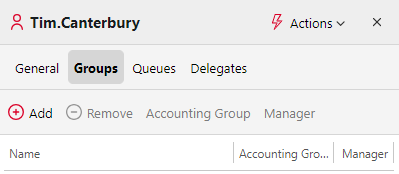
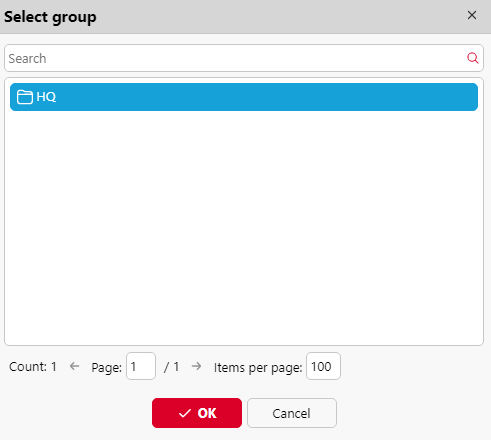
On the bar at the top of the Groups tab, click +Add. The Select group dialog box appears.
-
In the Select group dialog box, select the groups where you want to add the user to.
-
Click OK.
A user can also be added to a group on the Users main tab using drag and drop. Drag the user and drop it on the group icon on the groups tab on the left side of the screen.
Default group and Group manager options
On the bar at the top of the Groups tab, you can see two options: Accounting and Manager.
The Accounting group is the group where the user is counted in reports (see Reports) and it is set to every user by default.
If you make a user the Manager of a certain group, the user can see jobs and reports of all the users from the group. If this group contains subgroups, the user inherits the Manager role also for all these subgroups. To make the user a manager of a group, select the group and click Manager.
To remove a user from a group:
On the bar at the top of the Groups tab, click –Remove. The group disappears from the Groups tab.
To remove selected users from a group on the Users main tab, select the group there, select the users that you want to remove, click Actions, and then click Remove from group in the Actions drop-down box.
Queues Tab Overview
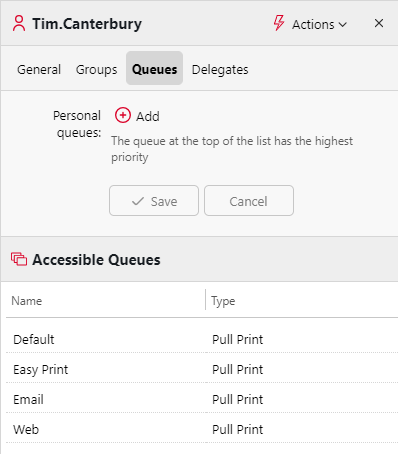
On the Queues tab, you can add Personal queues for a specific user, and see all the queues that the user can send jobs to.
Selecting User Delegates
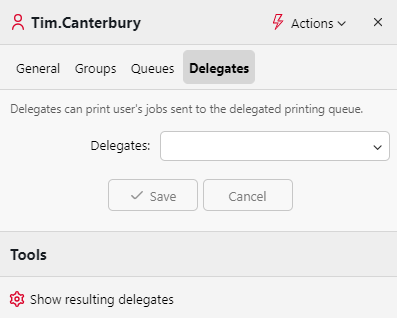
On the Delegates tab, you can select delegates (users or groups) who are able to print all of the delegating user jobs sent to a Delegate printing type of queue. The delegate will see the jobs on the embedded terminal. The print jobs are displayed in the form: (Sending user**Name of the print job).
Users need to have rights to a delegate printing type queue to be able to select delegates.
To select delegates:
On the bar at the top of the Delegates tab, in the Delegates combo box, enter the user (or the group of users), and then click Save. This way, you can add multiple users (or groups of users).
To deselect delegates:
On the bar at the top of the Delegates tab, in the Delegates combo box, point to the user (or group of users) that you want to deselect, and then click the remove button (X) on the right side of the user (or group of users).
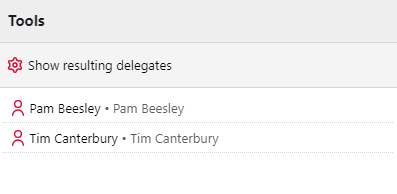
Show resulting delegates
You can use the Show resulting delegates tool to show you each delegate for a specified user. This is helpful if you have added one or more user groups as delegates for a user, and will show each user who is now a delegate as a result of adding their user group.