-
Go to the printer’s web UI at
http://*IP address of the printer*/. -
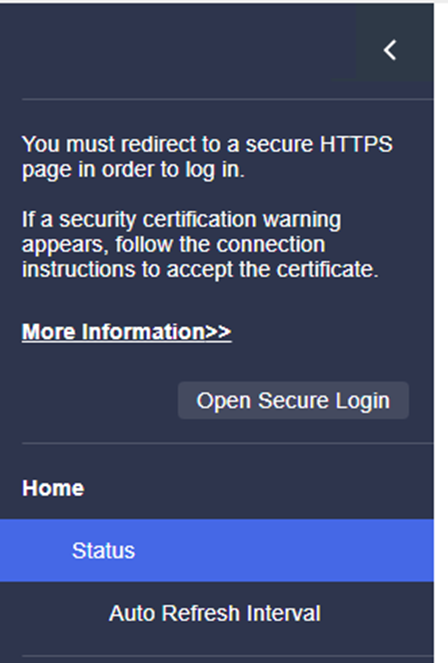
Select Open Secure Login.
-
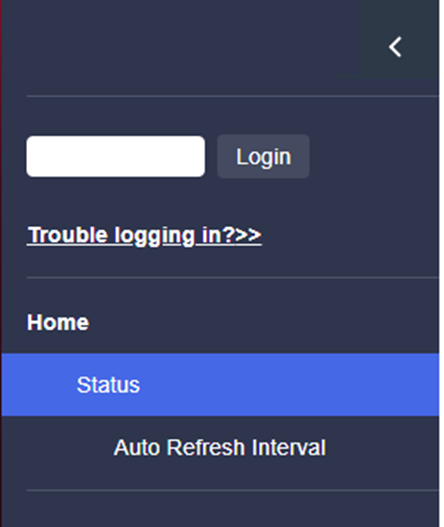
Enter the device administrator password, and click Login.
-
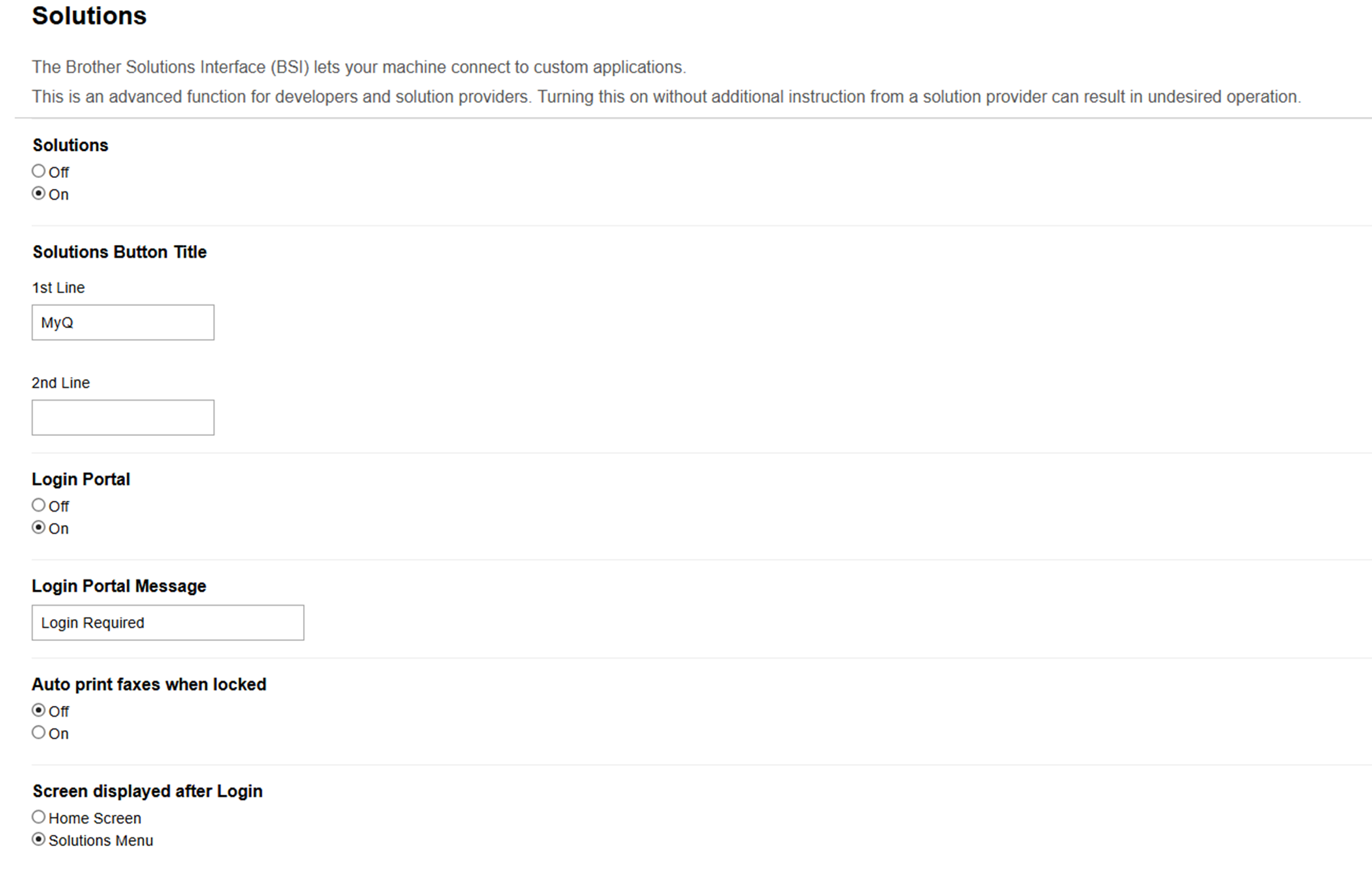
Go to Administrator > Solutions.
-
Set Solutions to On.
-
Set Solutions Button Title 1st Line to MyQ.
-
Set Login Portal to On.
-
Set Screen displayed after Login to:
-
Home screen to display the Home screen after login.
-
Solutions Menu to display the Print All button after login.
-
-
-
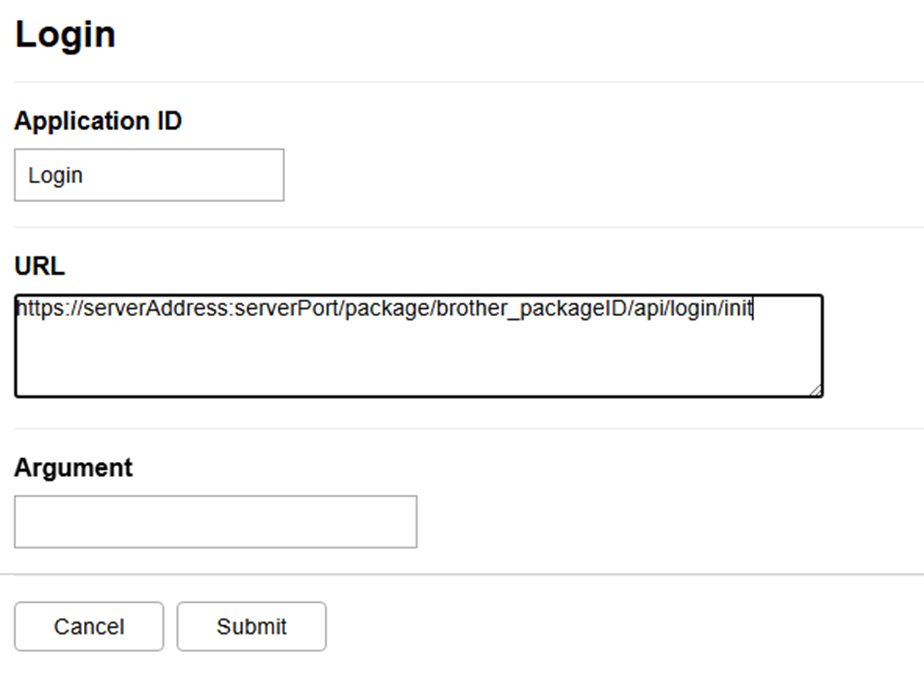
Go to Administrator > Solutions > Solutions Application Entry > Login.
-
Set Application ID to Login.
-
Set URL to
https://serverAddress:serverPort/package/brother_packageID/api/login/init(for examplehttps://10.14.17.152:8090/package/brother_32c4ffd7/api/login/init).-
The server address could be a hostname or IP address; in the case of an IP address the IP address has to be added in MyQ server Web UI > Settings > Network > Certificates > Server alternative names.
-
The package ID is a unique ID for the installed Brother package on the server, the ID changes after reinstallation of the package. You can find the package ID in Microsoft Task Manager or in the folder
C:\ProgramData\MyQ\Terminals.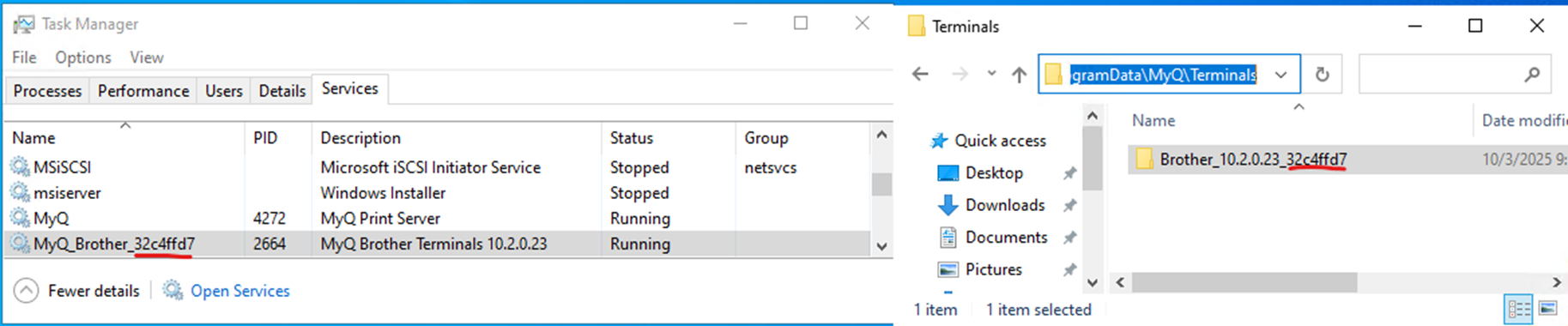
-
-
Leave Argument Empty.
-
-
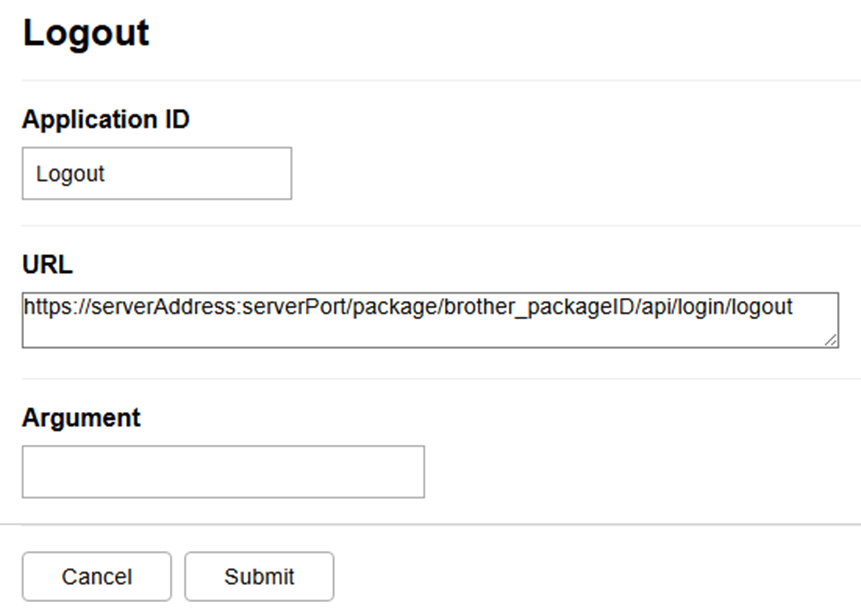
Go to Administrator > Solutions > Solutions Application Entry > Logout.
-
Set Application ID to Logout.
-
Set URL to
https://serverAddress:serverPort/package/brother_packageID/api/login/logout(for examplehttps://10.14.17.152:8090/package/brother_32c4ffd7/api/login/logout).-
The server address could be a hostname or IP address; in the case of an IP address the IP address has to be added in MyQ server Web UI > Settings > Network > Certificates > Server alternative names.
-
The package ID is a unique ID for the installed Brother package on the server, the ID changes after reinstallation of the package. You can find the package ID in Microsoft Task Manager or in the folder
C:\ProgramData\MyQ\Terminals.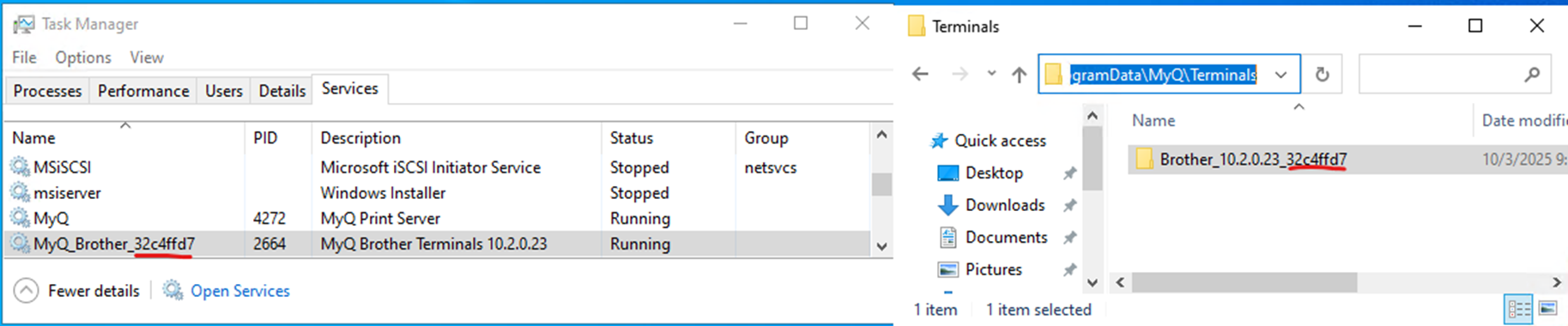
-
-
Leave Argument Empty.
-
-
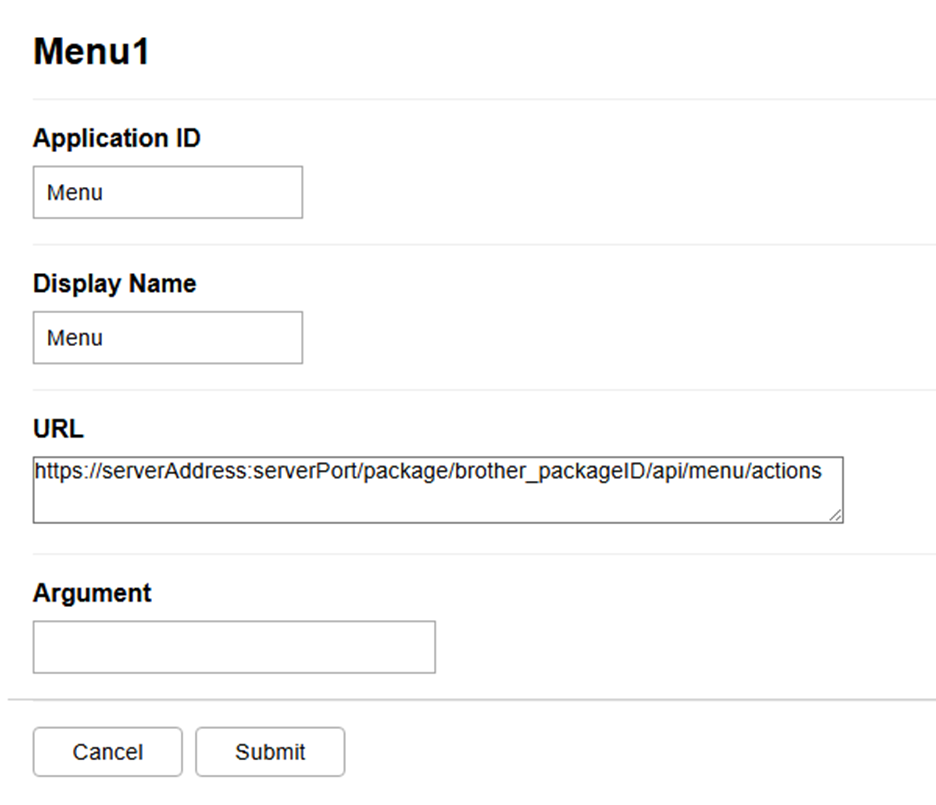
Go to Administrator > Solutions > Solutions Application Entry > Menu1.
-
Set Application ID to Menu.
-
Set Display Menu to MyQ.
-
Set URL to
https://serverAddress:serverPort/package/brother_packageID/api/menu/actions(for examplehttps://10.14.17.152:8090/package/brother_32c4ffd7/api/menu/actions).-
The server address could be a hostname or IP address; in the case of an IP address the IP address has to be added in MyQ server Web UI > Settings > Network > Certificates > Server alternative names.
-
The package ID is a unique ID for the installed Brother package on the server, the ID changes after reinstallation of the package. You can find the package ID in Microsoft Task Manager or in the folder
C:\ProgramData\MyQ\Terminals.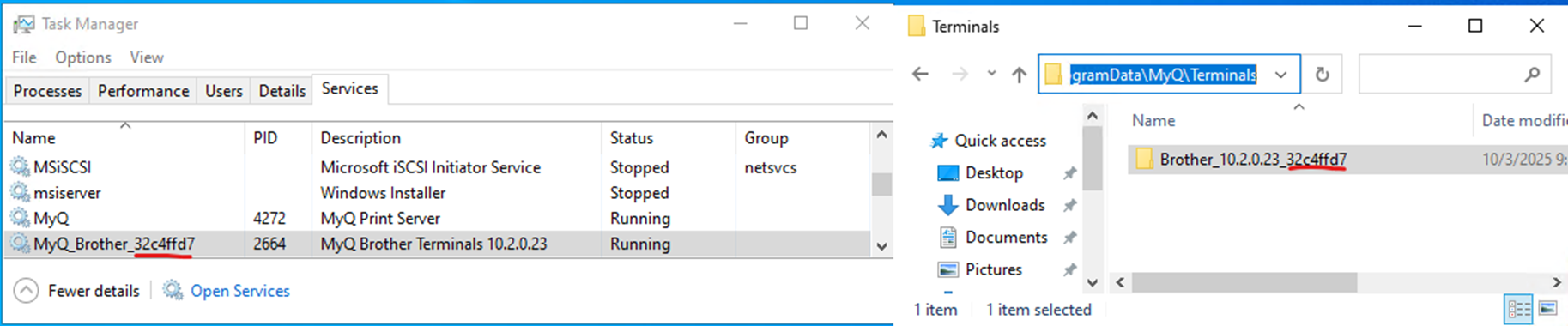
-
-
Leave Argument Empty.
-
-
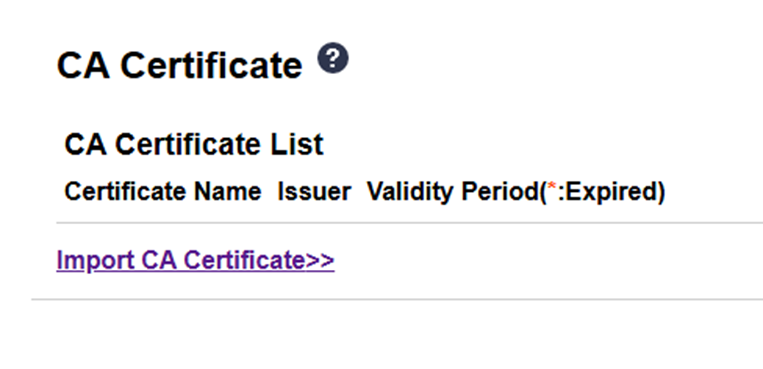
Go to Network > Security > CA Certificate.
-
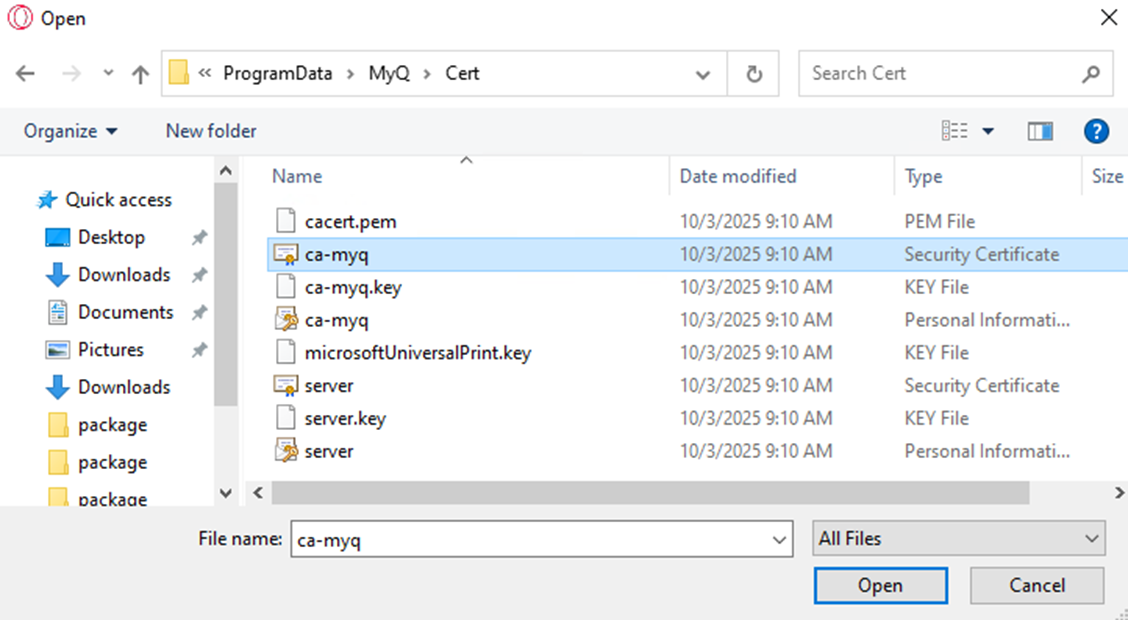
Import a CA certificate (use
ca-myq.crtfrom the folderC:\ProgramData\MyQ\Cert.
-