
On the Job processing tab of each queue, you can enforce additional job processing actions by selecting one or more of the predefined job settings or by creating any number of custom PJL commands.
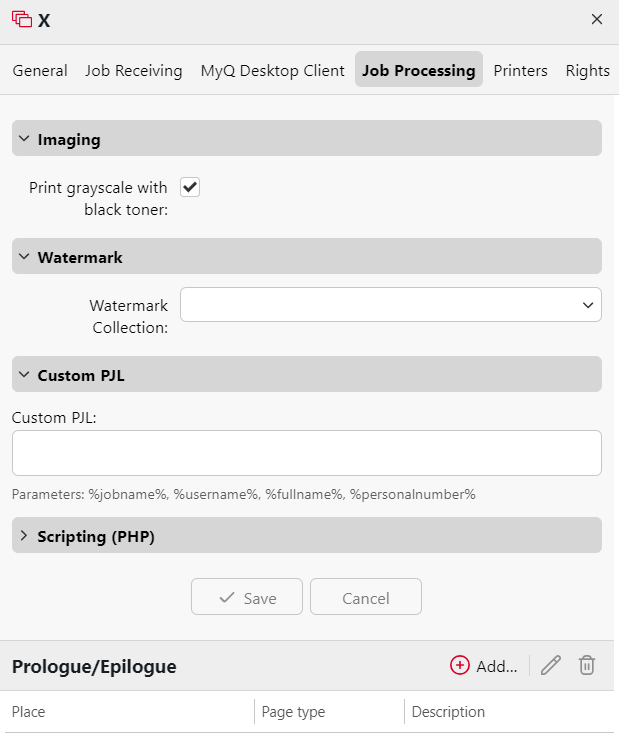
Imaging
Mark the checkbox if you want to Print grayscale with black toner.
Watermark
Choose your saved watermarks from the Watermark drop-down.
Custom PJL
You can set custom PJL commands to enforce other actions or provide additional information to the MyQ server. For example, you can use @PJL SET PAPER=A4 to enforce the A4 paper format or @PJL COMMENT="USERDOMAIN:somedomain.com;" to provide the MyQ server with the information about the domain of the printing user.
You can also use the following MyQ variables: %jobname%, %username%, %userID%, %fullname%, %personalnumber%.
When you enter your own PJL sequence, it is necessary to enter the correct syntax. The command should always start with @PJL.
To be applied, a PJL command has to be supported by the printing device where the job is released. The information on what PJL commands are supported by a particular model of printing devices can be found in the documentation provided by the device manufacturer.
Staple and Punch PJL Values
When using custom PJL commands to control stapling or punching, MyQ recognizes the following values. These values are also used internally when release options are evaluated across print job policies, printer policies, and queue release policies.
Staple
|
Value |
Description |
PJL Command(s) |
|---|---|---|
|
|
No stapling |
— |
|
|
Top left |
|
|
|
Top right |
|
|
|
Two staples |
|
|
|
Unknown |
|
Punch
|
Value |
Description |
PJL Command(s) |
|---|---|---|
|
|
No punching |
— |
|
|
Two holes (left) |
|
|
|
Four holes (left) |
|
|
|
Unknown |
All other PUNCH/PUNCHHOLE combinations |
PJL commands must be supported by the target printing device. Refer to your device manufacturer's documentation for a full list of supported PJL commands. Combinations that do not map to a named value are reported internally as 100 (unknown) and passed through to the device as-is.
Scripting (PHP)
You can use PHP scripts to further process the job after it is received by the MyQ server. Together with the PJL options and customizable queues, PHP scripting provides you with a large variety of job management options, such as the distribution of jobs between printing devices based on their size or color.
Scripting is detailed in Job Scripting.
Prologue/epilogue
You can find further details in Prologue/epilogue.