
If a job gets stuck due to an error on the printing device, the user can still log off. The stuck job will prevent another user from logging in and will automatically finish after the error is removed. However, this may lead to security issues.
If the Keep printing after logging out setting on the Printers settings tab is disabled, all jobs will be canceled after logging out.
To cancel stuck jobs:
-
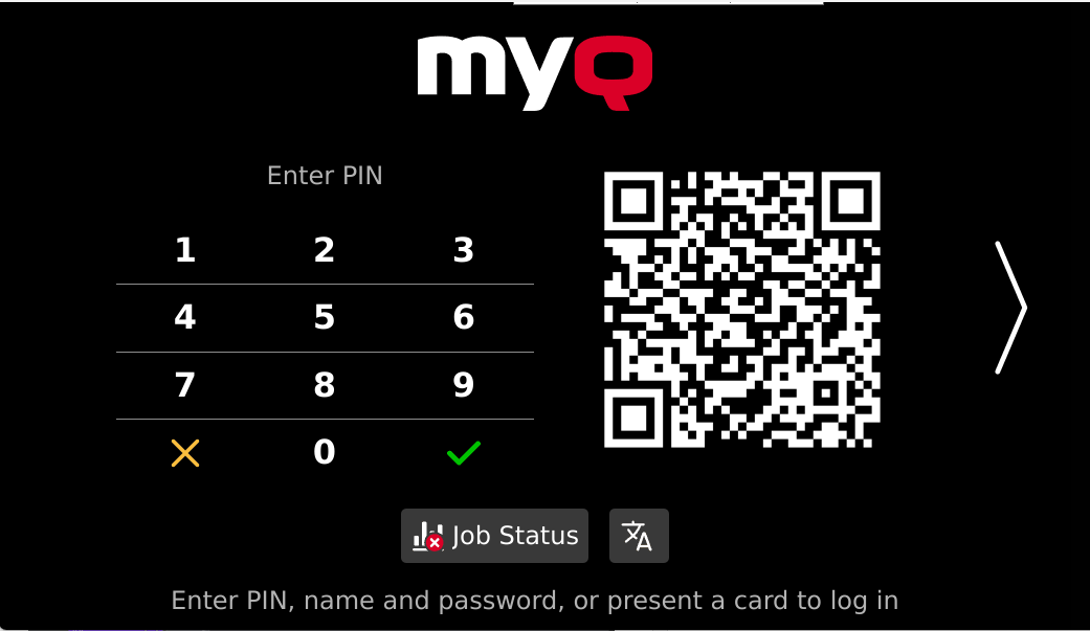
On the login screen, tap the Job Status button. The Print screen of the printing device's native panel opens.
-
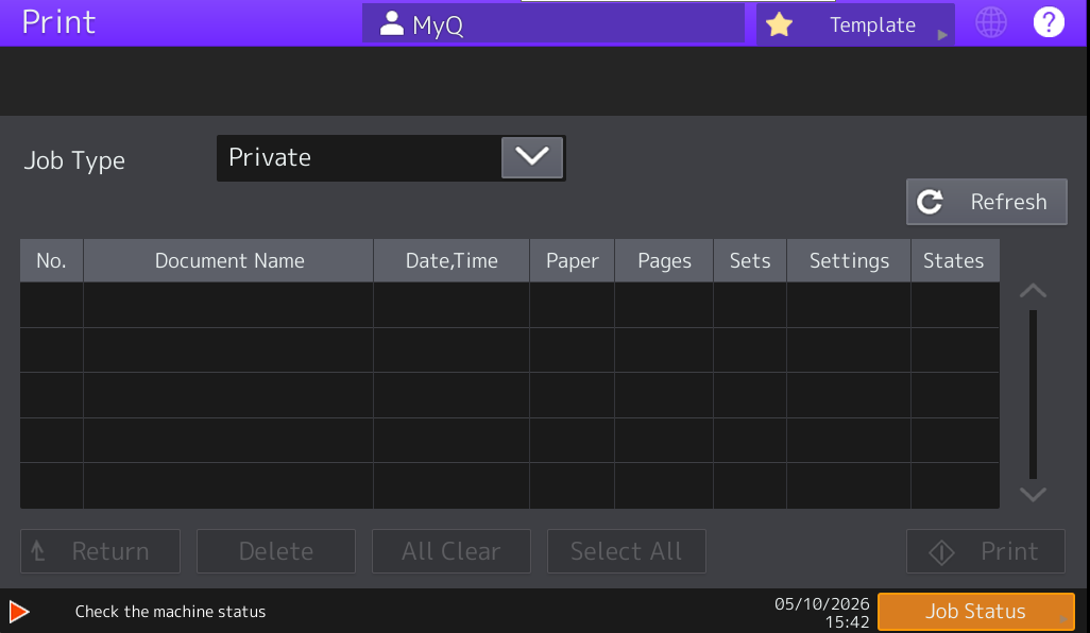
On the screen, tap the Job Status button in the bottom-right corner. The Job Status screen opens.
-
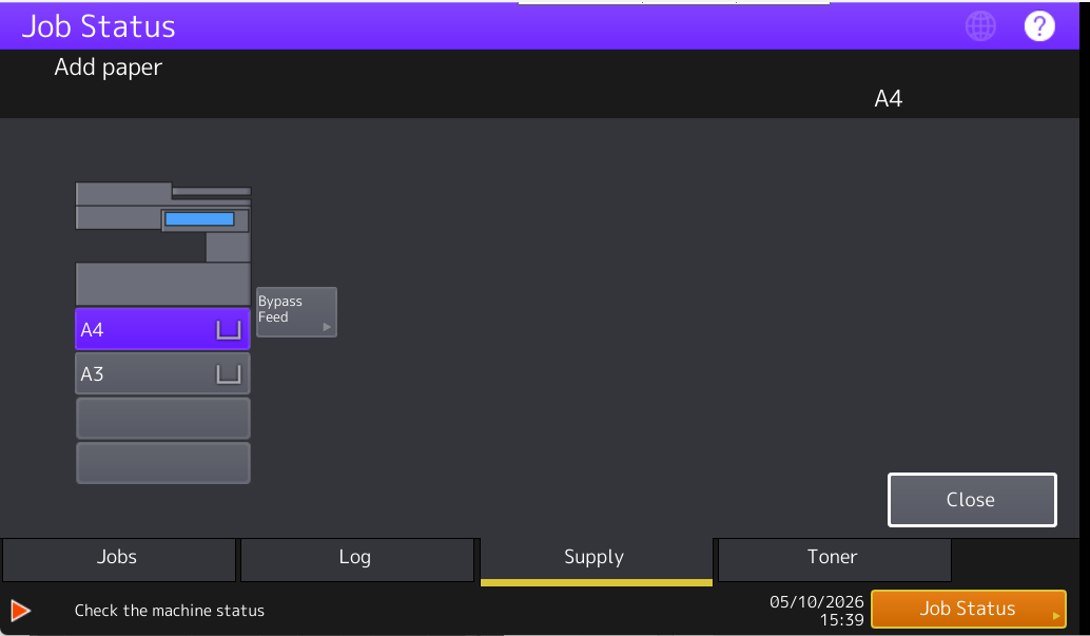
On the screen, tap the Jobs tab in the bottom-left corner. The Jobs tab opens.
-
On the tab, select all jobs by tapping on them. Tap the Delete button in the bottom of the tab and confirm by tapping Delete on the info pop-up window.
-
In order to return to the MyQ home screen, press the HOME button on the printing device's operation panel, and then tap the MyQ home button on the home screen of the panel.