Communication Security
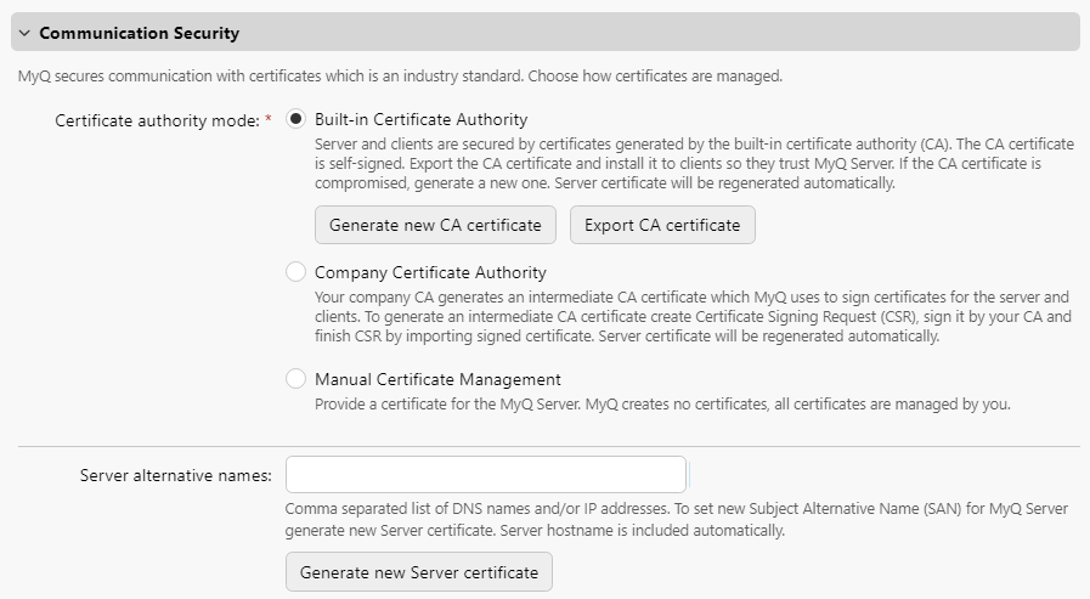
MyQ runs with secure communication (SSL) by default, but also offers three different certificate authority modes, that can be modified in MyQ, Settings, Network.
On certain devices, selecting Manual Certificate Management mode will mean that certificates cannot be signed.
Built-in Certificate Authority
When using this mode (default), it is required to Generate new CA certificate after the server configuration.
Upload the generated ca-myq.crt certificate from C:\ProgramData\MyQ\Cert on the Sharp device Web UI, in System settings > Security settings > Certificate Management > CA Certificate management.

Or on older Sharp devices, upload the generated ca-myq.crt certificate from C:\ProgramData\MyQ\Cert on the Sharp Web UI, in Security settings > SSL Settings > Installation of certificate.

It is also needed to modify all the MyQ Server addresses on the device web UI from HTTP to HTTPS, as well as the port you are using on the MyQ Server (8090 by default).
Using custom certificates
In case a custom SSL certificate is uploaded in MyQ, the certificate should also be installed in device web UI and in the Trusted Root Certification Authorities on the server.
Certificate validation
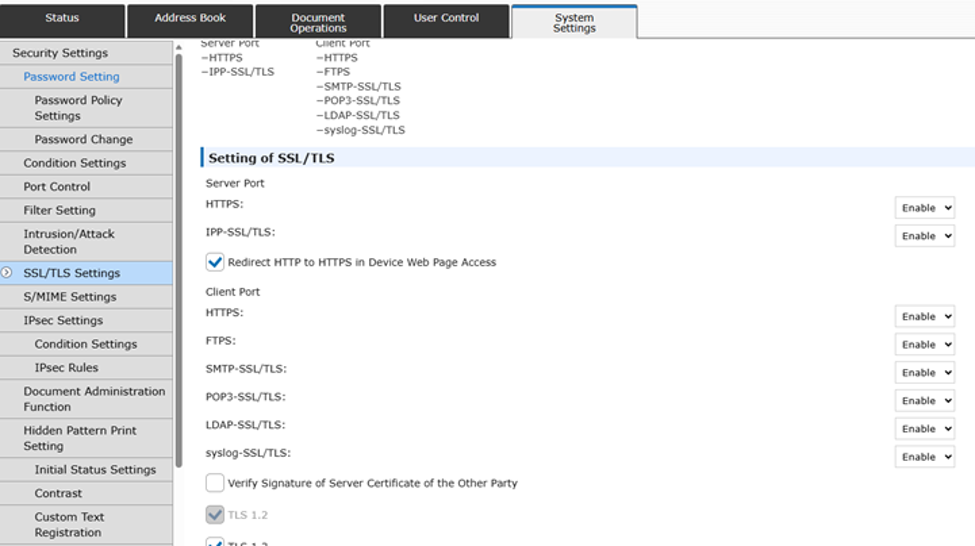
In some cases, your Sharp device might display the message “Could not access the accounting server” after a successful remote setup. If you see this message, open the Sharp Web UI and go to System Settings > Security Settings > SSL/TLS Settings. Then deselect the Verify Signature of Server Certificate of the Other Party option.
Enable unsecure communication
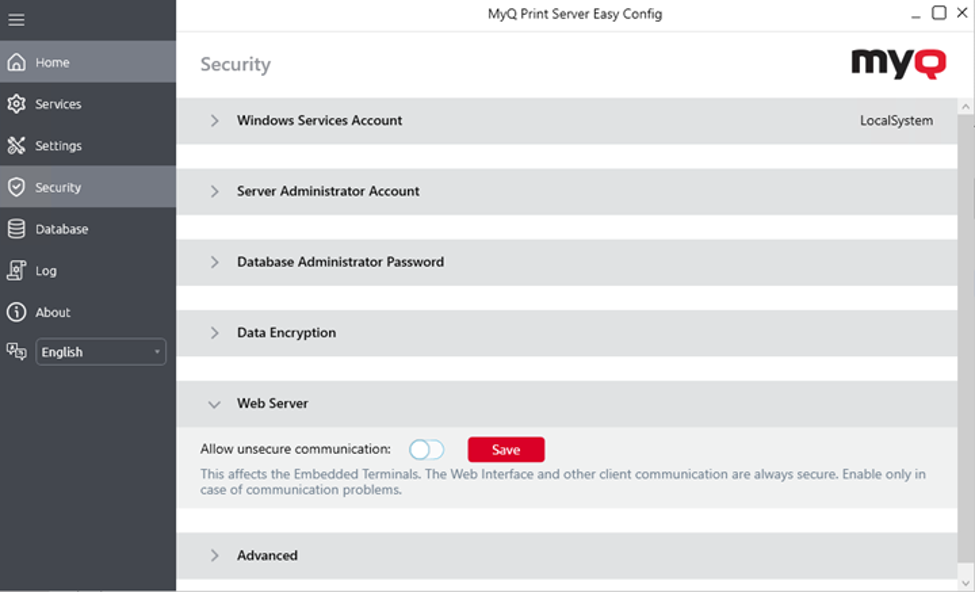
If SSL communication is not required, you can enable unsecure communication (not recommended) in MyQ Easy Config. Go to the Settings tab, under Web Server, enable Allow unsecure communication and click Save.