.png)
Running and Scheduling Reports
Reports can be run on-demand or scheduled to run automatically at specified intervals. This section describes both approaches.
Running Reports On-Demand
Preview a report
Select the report and click Preview. The report is shown in HTML format, with a limited subset of data included. You can switch between Graphical and Grid views.
Run a report
Right-click the report and click Run. The report runs in the specified format (PDF, CSV, XML, XLSX or ODS) with no data limitation.
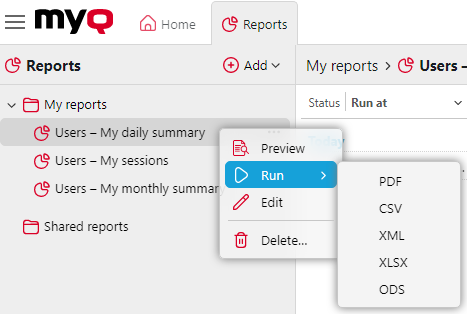
Export the displayed report
After the report is generated, click on the report's format link in the Files column to download it.
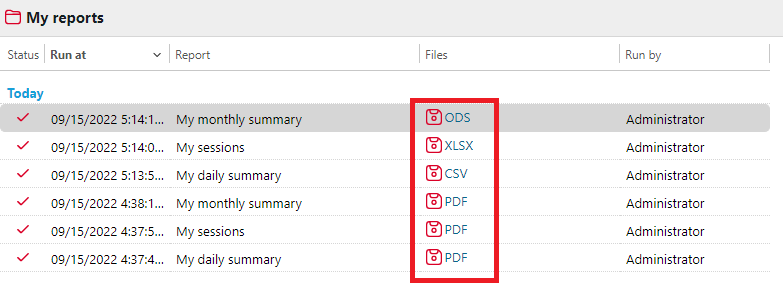
Scheduling Reports
You can schedule reports to run automatically at regular intervals. Scheduled reports are generated in the background and can be sent via email to specified recipients.
Schedule a report
In MyQ > Reports, click the three-dot menu for the report you want to schedule.
Click Edit. The report opens in edit mode.
On the General tab, in the Scheduled run section, click Schedule. The scheduled task editor opens.
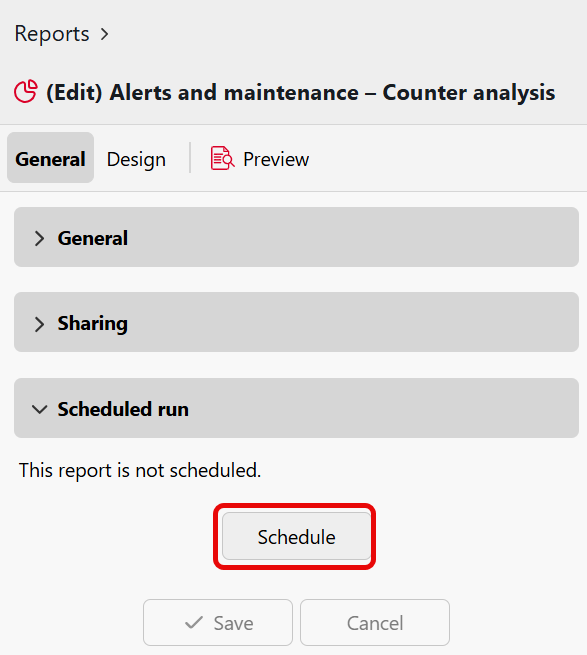
Configure the scheduling options to your needs. For more information, see Task Scheduler Settings.
After configuring the schedule, click Add to create the scheduled task, or Save if editing an existing schedule.
Managing Scheduled Reports
Scheduled reports appear in the Task Scheduler settings tab (MyQ > Settings > Task Scheduler) alongside other system tasks. The Action column shows "Scheduled Report" for these tasks.
From the Task Scheduler, you can:
View status: See whether the task is Ready, Disabled, or Running.
Check run history: View the Last run time, Last run result, and Next run time.
Run manually: Select the task and click Run to execute it immediately.
Edit: Double-click the task to modify its schedule or settings, and toggle the task on or off without deleting it.
Delete: Delete the scheduled report task. This removes the schedule from the defined report, but does not delete the report.