.png)
Recharging Credit via Stripe
Stripe is a payment provider that supports a range of payment methods, including credit and debit cards, and bank transfers, which you configure and manage from your Stripe dashboard.
With an activated Stripe account you can integrate with MyQ so that users can recharge their MyQ credit via Stripe payments from the MyQ Web Interface.

To avoid currency conversion fees, ensure that the 3-letter currency set in MyQ > Settings > General is also configured among your settlement currencies in Stripe.
Setting up Stripe Payments
To set up Stripe as a payment provider in MyQ, you simply need to generate a Stripe restricted key and enter it in MyQ. You don’t need to create any special product catalog items – payments from MyQ are automatically processed in Stripe as MyQ Credit.
We recommend that you use use a unique restricted key for each of your Print Server instances.

Use a Stripe sandbox key to test MyQ integration. When you are ready, generate a restricted key from your live Stripe environment and set it in MyQ.

For more information, see the following resources in the Stripe documentation:
Create a Restricted Key in Stripe
You generate a restricted key through the Stripe Developers Dashboard.
Log in to your Stripe account and select the environment that you want to use with MyQ.
Go to the API keys page in the Developers section of your Stripe Dashboard.
In the Restricted keys section, click + Create restricted key.
Select Building your own integration and click Continue.
Enter a descriptive Key name (for example, “MyQ Integration”).
Set the following permissions to
Write:Payment Intents
Checkout Sessions
Ensure all other permissions are set to
None.Click Create key.
Copy the token for your key. You will enter this token in MyQ.
Configure Stripe in MyQ
Log in to Web UI as an administrator, and go to Settings > Accounting > Credit.
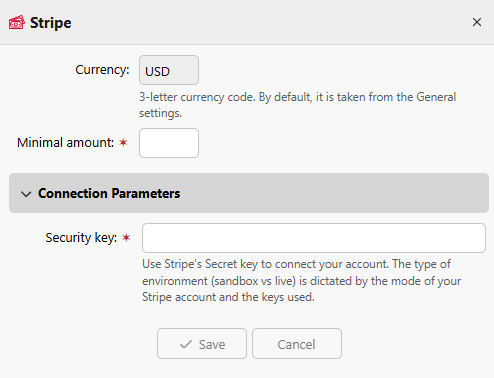
Under Payment providers, double-click Stripe.
Enter the minimum amount of credit that users can buy.
Enter your Stripe restricted key token in the Security key field, and click Save.
Recharge User Credit with Stripe
To update their credit with Stripe, the user completes these steps in the MyQ Web Interface.
Log in to the MyQ Web Interface.
Go to Credit and click Recharge Credit.
Select Stripe as the payment provider and enter the desired amount of credit to purchase.
Click Recharge Credit.
A Stripe checkout window opens, where you complete your payment. After successful payment, you are directed to the confirmation page. The credit will be automatically added to your account.If the new credit balance is not shown, refresh MyQ in your browser.