
With the project accounting feature activated, users can assign projects to print, copy and scan jobs directly on the embedded terminal screen. Projects can also be assigned to print jobs in the MyQ Desktop Client pop-up window, on the MyQ Web administrator interface, or in the MyQ mobile application.
For more information, check Projects in the MyQ Print Server guide.
Limitations
-
When a user logs in, the package has no information about the number of projects available to that user. If the user does not have the rights to use any projects (including the no project option):
-
On login, all actions are available to the user if credit/quota/rights conditions are met.
-
The terminal will attempt to assign a project when an action is executed according to the standard workflow. If the user does not have the rights to use any project, an error message is shown.
-
If the “no projects available” error message was displayed, the menu buttons are disabled with "No valid project” as the given reason. My Jobs is still available, but it is not possible to print, and the "No valid project" message is shown in the header.
-
-
If a user enters the panel via the home button immediately after login, project selection is bypassed, and any executed panel job will not be assigned a project. If the user does not have the rights to use any project, all panel jobs will be completed regardless.
-
If a user enters the panel via the Top Menu, the selected project will be applied to all jobs panel jobs.
-
If a user wishes to enter the panel directly while keeping the project selection option available, they must do so via the Unlock Panel Top Menu action tile.
Assigning Projects to Print Jobs
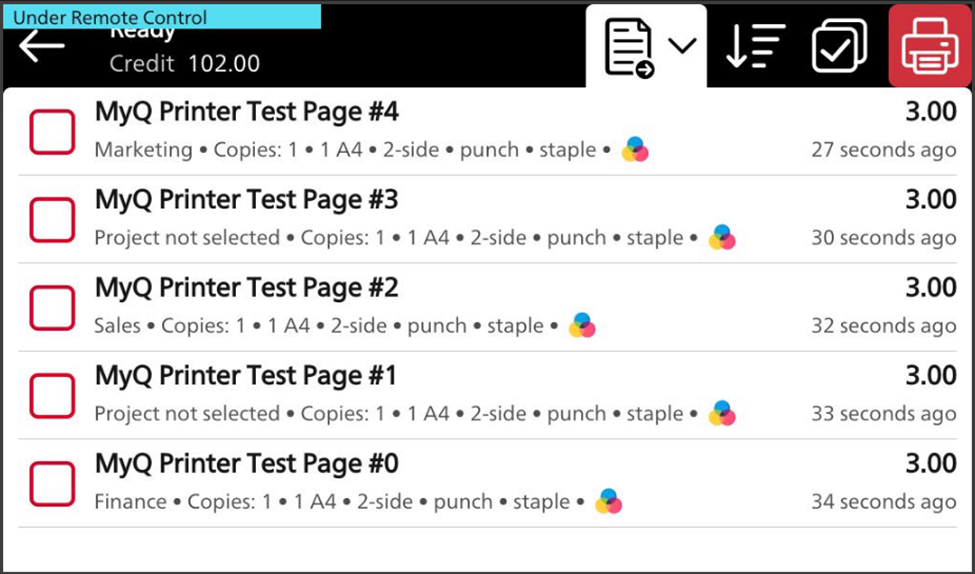
My Jobs
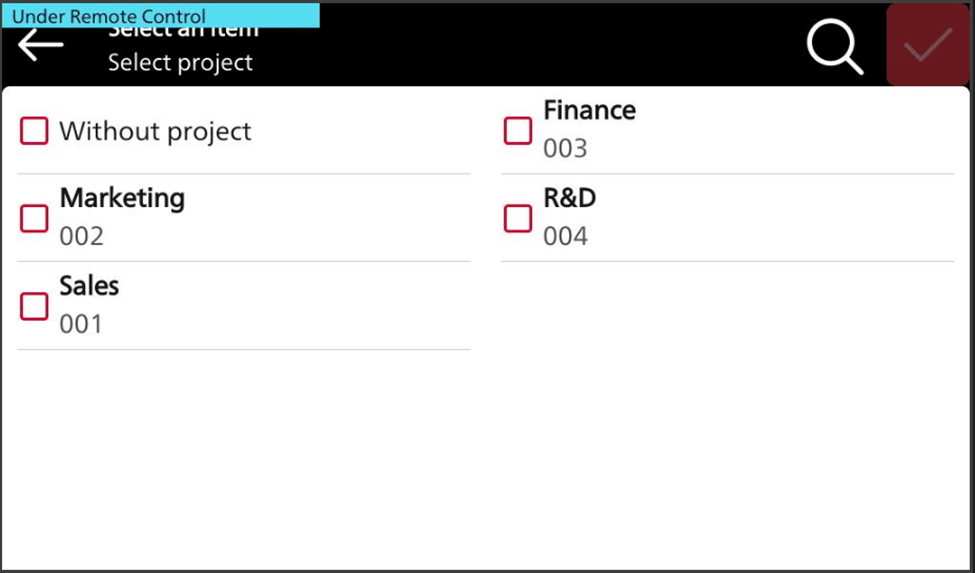
If a user wants to print an unassigned job from the My Jobs list, they are immediately redirected to the Project selection screen and have to select one of the available projects (or the Without project option, if printing without project is allowed) to print it.
Jobs with projects assigned to them are immediately printed.
Print All
If all the jobs waiting in queue have projects already assigned by MyQ Desktop Client, MyQ Web administrator interface or the MyQ mobile application, printing starts immediately.
If there are any unassigned jobs, the user is redirected to the Project selection screen, immediately after tapping the Print All button. They have to select one of the available projects (or the Without project option, if printing without project is allowed) to be allowed to print the jobs. The selected project (or the Without project option) is assigned only to unassigned jobs; all other jobs keep their previously assigned projects.
Assigning Projects on the Panel Copy Screen
After tapping the Copy button on the Panel Copy screen, the user is immediately redirected to the Project selection screen, where they need to select a project (or the Without project option). The project is then assigned to all jobs copied on the panel.
Assigning Projects on the Panel Scan Screen
After tapping the Scan button on the Panel Scan screen, the user is immediately redirected to the Project selection screen, where they need to select a project (or the Without project option). The project is then assigned to all jobs scanned on the panel.
Assigning projects on the Panel Fax screen
After tapping the Fax button on the Panel Fax screen, the user is immediately redirected to the Project selection screen where they need to select the project (or the Without project option).