
Integrated Windows Authentication (IWA) allows users in a Windows domain to sign in to MyQ without re-entering their credentials. When both the MyQ server and the client device are domain-joined, authentication can occur automatically using the user’s Windows identity.
MyQ supports the authentication protocols used by IWA: Kerberos and NTLM. Kerberos is attempted first when conditions allow (domain-joined device, correct DNS/SPN setup). NTLM is used only when Kerberos cannot be applied (for example, for non-domain devices, legacy environments, or due to misconfigured SPNs). Optionally, you can enforce Kerberos-only authentication on the MyQ server.
Protocol Comparison
|
Feature / Behavior |
Kerberos |
NTLMv2 |
|---|---|---|
|
Security strength |
High (mutual authentication, tickets) |
Moderate (challenge–response) |
|
Domain membership required |
Yes |
Preferred, but can work in other scenarios |
|
Requires SPN |
Yes |
No |
|
Server access |
FQDN |
FQDN, IP address, hostname |
|
Compatible with non-domain devices |
No |
Yes (fallback) |
|
Recommended for MyQ |
Yes |
Only when Kerberos is not available |
|
Can be disabled |
Yes (via policy) |
Yes, via GPO or MyQ configuration parameter
|
Prerequisites
-
Active Directory Domain Services (AD DS) is running.
-
DNS correctly resolves the FQDN of your MyQ server.
-
The MyQ server and client devices are joined to the same domain (or trusted domains).
-
AD is configured as the authentication server in MyQ, and users are synchronized.
-
Sign in with Windows Authentication is enabled in MyQ > Settings > User Authentication.
-
Time synchronization is accurate between domain controllers, servers, and clients.
IWA works only in domain-joined or trusted domain environments. Devices outside the domain cannot authenticate silently.
Server Configuration
MyQ does not require IIS; MyQ relies on Windows (http.sys) for SPN-based authentication over the Windows HTTP Server API. For this reason, the SPN must be registered on the computer account of the MyQ server, rather than on a service account.
If NTLM is required for legacy systems, enforce NTLMv2. Otherwise, disable NTLM entirely.
Client Configuration
Configure browsers (Edge, Chrome, Firefox) to trust the FQDN of the MyQ server as an intranet site and enable IWA.
Example: Microsoft Edge
-
Internet Options > Advanced > Security > Enable Integrated Windows Authentication.
-
Internet Options > Security > Local intranet > Sites > Advanced, add the intranet sites here. Then go to Custom level > User Authentication > Logon > Automatic logon only in Intranet zone.
To enable Windows Authentication (Seamless SSO) on Desktop Client for domain-joined devices, modify its configuration profile on the MyQ server.
Group Policy and Kerberos Enforcement
Use Windows Group Policy settings to centrally manage authentication behavior for all domain-joined systems. MyQ also provides a server-level option to enforce Kerberos without affecting other services.
|
Scope |
Configuration location |
Purpose |
Notes |
|---|---|---|---|
|
MyQ only |
|
Enforces Kerberos authentication for MyQ |
Does not affect NTLM usage by other services |
|
Domain-wide (Kerberos) |
|
Controls Kerberos ticket lifetimes, renewals, and clock skew |
Applies to all domain-joined servers and clients |
|
Domain-wide (NTLM) |
|
Restricts or disables NTLM authentication |
Disabling NTLM enforces Kerberos across the domain |
Kerberos Workflow
-
Ticket Granting Ticket (TGT) Acquisition: Domain-joined clients obtain a TGT from the Key Distribution Center (KDC).
-
Service Ticket Request: The client requests a service ticket for
HTTP/<FQDN>from the KDC. -
Token Validation: MyQ Server validates the service ticket against the registered SPN.
User Login Experience
IWA in the MyQ Web Interface
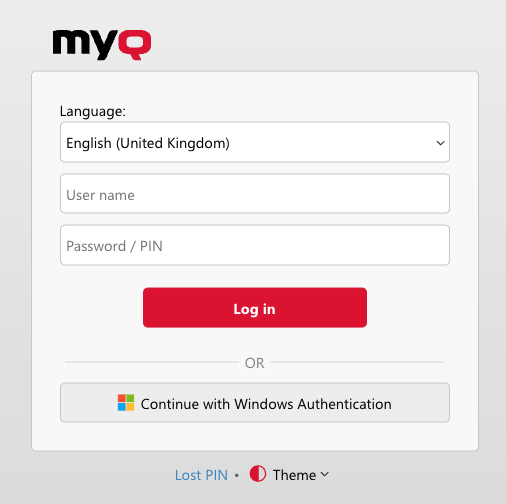
Windows Authentication can be enabled in MyQ > Settings > User Authentication. Once enabled, an IWA login method appears on the login screen, while other methods remain available for users not covered by IWA (e.g., BYOD users, guests, or administrators).
When a user accesses the MyQ Web Interface from a domain-joined Windows device, MyQ attempts authentication using Kerberos first, with fallback to NTLM, unless NTLM fallback is disabled.
If Windows Authentication fails, the user is redirected to the standard login screen with the error message Invalid credentials.
IWA in MyQ Desktop Client
Windows Authentication can be enabled for particular configuration profiles in Settings > MyQ Desktop Client.
When a user launches the Desktop Client on a domain-joined Windows device, MyQ attempts authentication using Kerberos first. If Kerberos is unavailable or fails, MyQ falls back to NTLM, unless NTLM fallback is disabled.
If Windows Authentication fails, users are redirected to the standard login screen to use MyQ credentials or LDAP validation against a remote user directory.
Troubleshooting
Authentication Logs and Verification
When using IWA, authentication is handled by Windows and Active Directory. For this reason, there are no MyQ-specific logs that explicitly state the protocol that was used for a particular login.
You can inspect authentication activity in the Windows Security Event Log on the Domain Controller:
-
Kerberos authentication events typically include:
-
Successful logon: Event ID 4624 (Logon Type 3 or 10)
-
TGT request: 4768
-
Service ticket request: 4769
-
Authentication failures: 4771, 4775
-
-
NTLM authentication attempts are logged as security events, which indicates NTLM usage.
These events show whether Kerberos or NTLM was used and identify the originating computer (hostname or IP address). These events do not identify MyQ as the application initiating the request.
Domain Mapping
In Windows environments, the domain name used during authentication can appear in different formats, most commonly as a NetBIOS name (short name) or a DNS domain name (FQDN). For IWA to succeed, the domain presented by the client must match the domain configured in the MyQ authentication server.
Authentication may fail if these formats differ – for example, the user signs in as ACME\jdoe but MyQ is configured for acme.example.com. This is especially common with NTLM, where the domain value is strictly evaluated.
To support such environments, MyQ provides the domainsMapping parameter, which allows you to map NetBIOS domain names to their corresponding DNS domain names. For information about how to use this parameter, see Advanced Configuration.
SPN Registration
To register the required SPN on the MyQ server computer account:
-
Open Command Prompt as Administrator on a Domain Controller.
-
Run:
setspn -S HTTP/myqserver.domain.com MYQSERVER -
Verify registration:
setspn -L MYQSERVER -
Confirm that the HTTP/myqserver.domain.com entry appears.
Resources
-
Kerberos Authentication Overview in Windows Server | Microsoft Learn
-
Kerberos authentication troubleshooting guidance - Windows Server
-
Enable NTLM 2 authentication - Windows Client | Microsoft Learn
-
AD FS Troubleshooting - Integrated Windows Authentication | Microsoft Learn